



Original image
step 1 of 29
Open up the images of the Zombie and the Jello mold.

step 2 of 29
Select Quick Mask Q to select the bust of the zombie girl. Select Q to exit Quick Mask.

step 3 of 29
Select CTRL/SHIFT/I to inverse the selection.
Select Edit>Copy.
Select Edit>Copy.

step 4 of 29
Select the Jello Mold Layer. Select Edit>Paste.

step 5 of 29
Increase Zoom Level to focus in on your zombie's eyes.
Select the Eye Dropper Tool (I) and select an orange color fromt the Jello Mold.
Create a New Layer.
Color your zombie's orange.
Use the Eye Dropper Tool to select a white or something close to it from the image. Color your zombie's eye whites.
Select the Eye Dropper Tool (I) and select an orange color fromt the Jello Mold.
Create a New Layer.
Color your zombie's orange.
Use the Eye Dropper Tool to select a white or something close to it from the image. Color your zombie's eye whites.

step 6 of 29
Select Overlay to blend the eye colors with your zombie's eyes.

step 7 of 29
Hide Jello Mold Layer.
Select Layer>Merge Visible. Or right click on Zombie layer and select Merge Visible to merge eye color with your zombie.
Select Layer>Merge Visible. Or right click on Zombie layer and select Merge Visible to merge eye color with your zombie.

step 8 of 29
Select Edit>Transform>Scale.
Hold the Shift Button to keep your zombie's proportions while scaling her down to fit inside the mold.
Hold the Shift Button to keep your zombie's proportions while scaling her down to fit inside the mold.

step 9 of 29

step 10 of 29
Select Overlay to blend the Zombie Layer to the Jello Mold Layer.

step 11 of 29
Create a New Layer.
Select the Gradient Tool (G).
From the Gradient Drop Down, select the third choice (black to white fade.)
Starting from the BOTTOM and MIDDLE of the Layer, draw a line UP to the TOP of the layer. This will cause the gradient to go from light to dark from top to bottom.
Select the Gradient Tool (G).
From the Gradient Drop Down, select the third choice (black to white fade.)
Starting from the BOTTOM and MIDDLE of the Layer, draw a line UP to the TOP of the layer. This will cause the gradient to go from light to dark from top to bottom.

step 12 of 29
Making sure that the Gradient Layer is selected in the Layers Pallet, select Overlay to blend it.

step 13 of 29
Find a branch brush such as the one used here.
Use your Color Picker to choose a dark green.
Select the Jello Layer. Brush one Branch onto this layer.
Select the Zombie Layer.
Brush one Branch onto this Layer.
Use your Color Picker to choose a dark green.
Select the Jello Layer. Brush one Branch onto this layer.
Select the Zombie Layer.
Brush one Branch onto this Layer.

step 14 of 29
Open Image of the Dragonfly.

step 15 of 29
Open Image of the Dragonfly.

step 16 of 29
Select Eraser Tool (E).
Select Background Eraser Tool.
Select a Large Brush size such as 2500.
Select Sampling Once.
Select Limits: Find Edges.
Set Tollerence to 20%.
Select Background Eraser Tool.
Select a Large Brush size such as 2500.
Select Sampling Once.
Select Limits: Find Edges.
Set Tollerence to 20%.

step 17 of 29
Making sure that the cross hairs of the eraser/brush are on the background, click on background to erase it.
Once you have isolated the dragonfly, you can select the whole image by selecting Rectangular Marquee Tool.
Select entire image.
Edit>Copy
Once you have isolated the dragonfly, you can select the whole image by selecting Rectangular Marquee Tool.
Select entire image.
Edit>Copy

step 18 of 29
Select the Jello/Zombie image.
Select Edit>Paste to place the Dragonfly image onto Jello/Zombie image.
Move it into position.
Keep Dragonfly image at the tip of the Layers pallet.
Select another Branch Brush such as the one I used here.
Select Jello Layer. Brush one Branch onto that Layer.
Select Zombie Layer. Brush one branch onto that Layer.
Select Edit>Paste to place the Dragonfly image onto Jello/Zombie image.
Move it into position.
Keep Dragonfly image at the tip of the Layers pallet.
Select another Branch Brush such as the one I used here.
Select Jello Layer. Brush one Branch onto that Layer.
Select Zombie Layer. Brush one branch onto that Layer.

step 19 of 29
Select the Eliptical Marquee Tool (M).
Use it to select a small round section of the Jello Mold.
Use it to select a small round section of the Jello Mold.

step 20 of 29
Create New Layer.
Copy and Paste the round selection into the New Layer.
Move the new circle away from the Jello Mold so that you can see. it.
Copy and Paste the round selection into the New Layer.
Move the new circle away from the Jello Mold so that you can see. it.

step 21 of 29
While being sure that the new circle layer is selected, Select Filter>Distort>Glass.

step 22 of 29
Set the parameters in the Filter Window.
Distortion: 12
Smoothness: 1
Texture: Tiny Lens
Scaling: 58
Distortion: 12
Smoothness: 1
Texture: Tiny Lens
Scaling: 58

step 23 of 29
Select Difference to blend in small circle.
Move it into place among the branches.
Move it into place among the branches.

step 24 of 29

step 25 of 29
Open image of the Letter. Use Rectangle Marquee Tool (M) to select the entire image.
Edit>Copy.
Edit>Copy.

step 26 of 29
Select the Jello/Zombie image.
Select Edit>Paste to place the image of the letter into the Jello/Zombie image.
Select Edit>Paste to place the image of the letter into the Jello/Zombie image.

step 27 of 29
Making sure that the Letter Layer is selected, select Edit>Transform>Scale. Pull the corners out until the Letter image fits over the entire Jello Mold Layer.
The Letter Layer should be just above the Jello Mold Layer and nothing else.
The Letter Layer should be just above the Jello Mold Layer and nothing else.

step 28 of 29
Select Overlay to blend the Letter Layer into the Jello Mold Layer.

step 29 of 29
Making sure that the Letter Layer is selected, Reduce the Opacity of Letter Layer to 28%.
Make sure that the Dragonfly Layer is beneath the Gradient Layer.
Flatten Image.
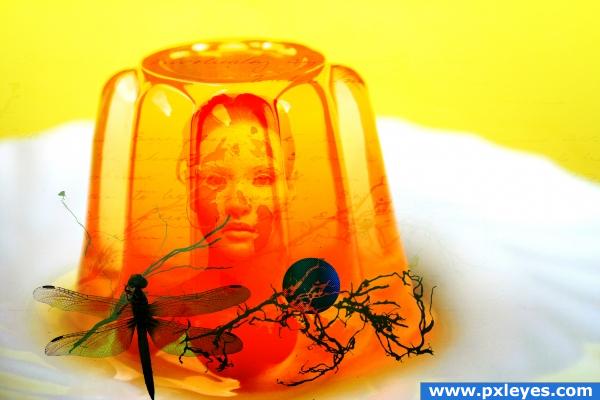
Et voile`!
Make sure that the Dragonfly Layer is beneath the Gradient Layer.
Flatten Image.
Et voile`!

Final result

Pxleyes
Photography and photoshop contests
We are a community of people with
a passion for photography, graphics and art in general.
Every day new photoshop
and photography contests are posted to compete in. We also have one weekly drawing contest
and one weekly 3D contest!
Participation is 100% free!
Just
register and get
started!
Good luck!
Follow us:








© 2015 Pxleyes.com. All rights reserved.